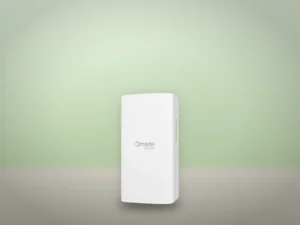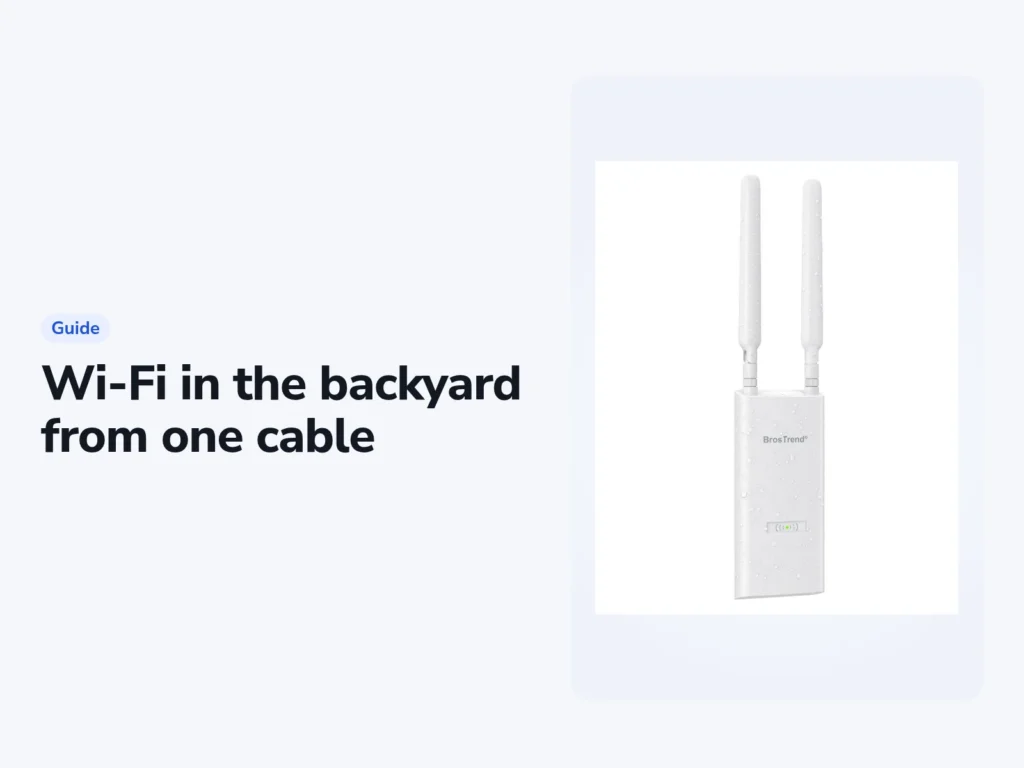
Get the outdoor access point online indoors before you drill. Set up the BrosTrend XA2 next to the router in Access Point Mode, then run the outdoor cable and check the signal where you need it. One Ethernet cable carries power and data to the XA2. Its included power adapter and injector stay indoors.
Pick the power source and measure the cable run
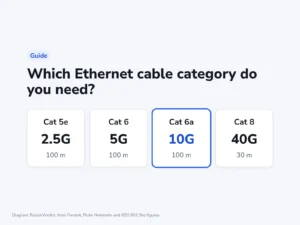
BrosTrend calls for shielded outdoor Cat5e or better cable with waterproof and UV-resistant construction. The PoE run to the access point can be up to 328 feet. Measure the actual route, including the section from the indoor power source to the exterior wall.
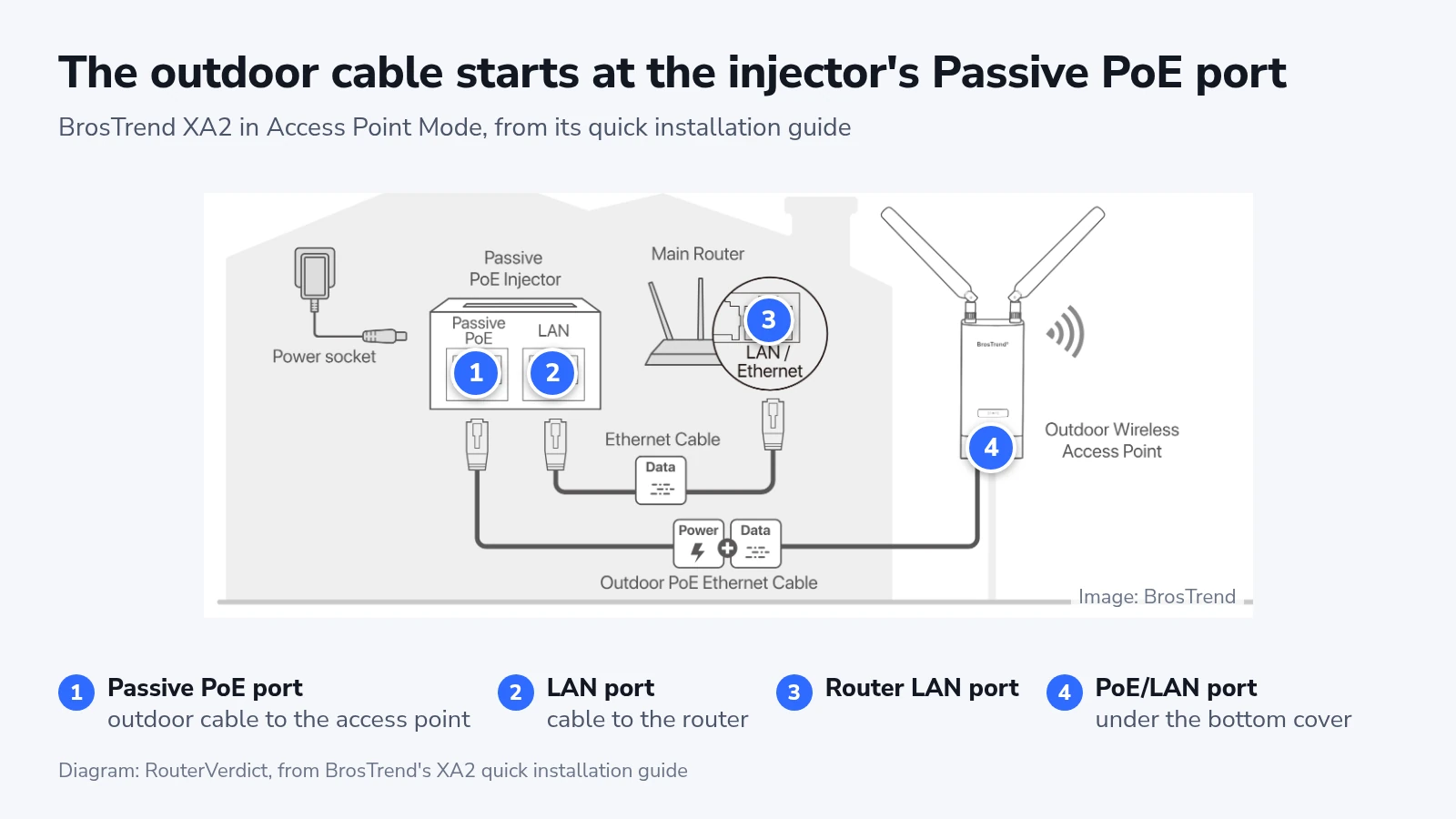
- With the included injector, connect the injector’s “Passive PoE” port to the XA2’s “PoE/LAN” port. Use a second Ethernet cable to connect the injector’s “LAN” port to the router when the setup page asks you to connect the XA2 to the internet. Reserve the passive port for the access point.
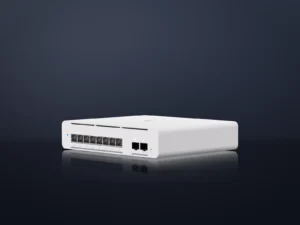
- With a PoE switch, choose a port that supports 802.3at or 802.3bt. BrosTrend excludes 802.3af and rates the XA2 at up to 16.8 W. Check the switch’s remaining power budget if it already runs cameras or other access points.
Attach the antennas and power up
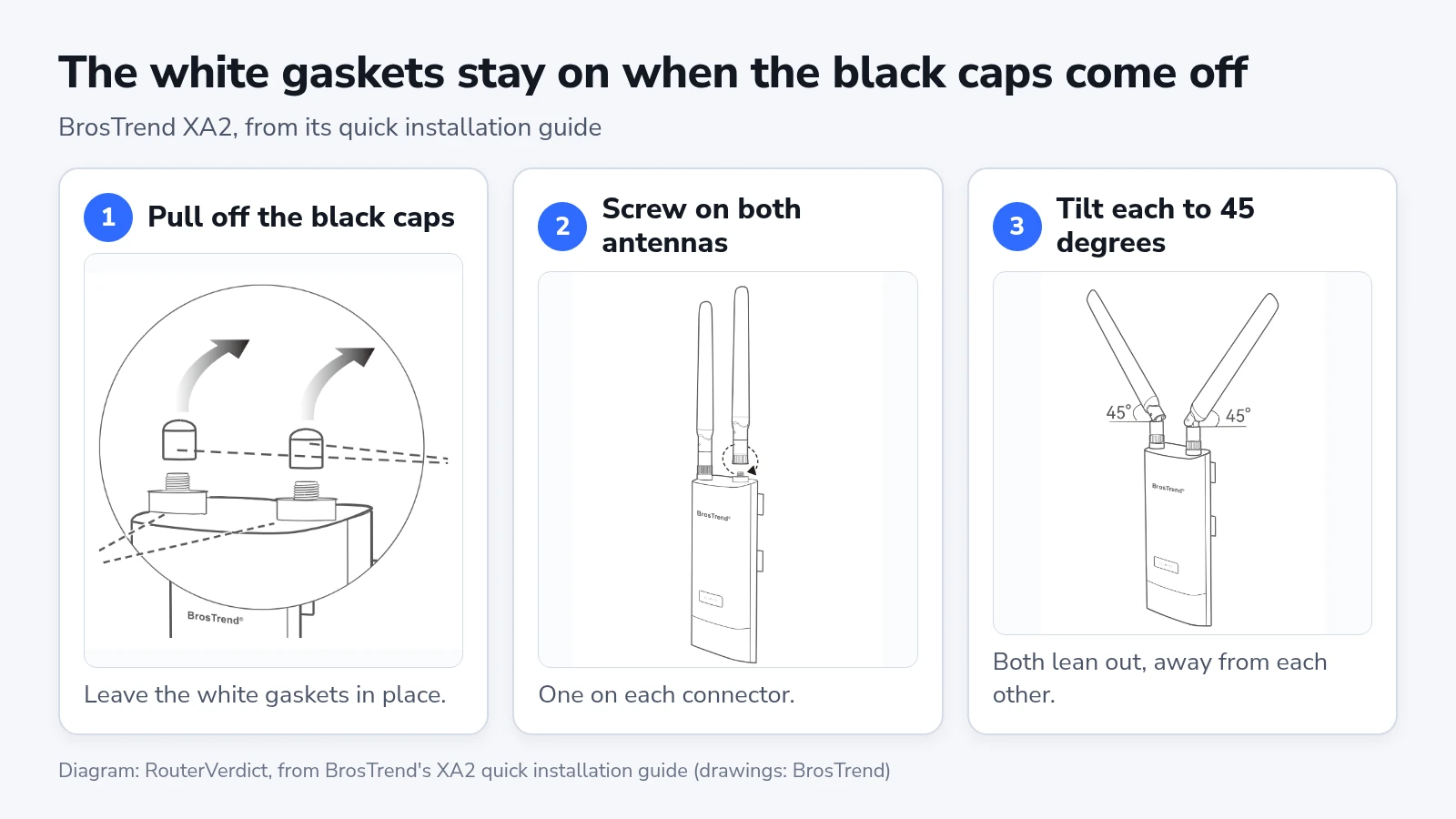
Remove the black caps and leave the white gaskets in place. Screw on the included antennas, then tilt each outward at about 45 degrees, as BrosTrend recommends. Connect the chosen PoE source and wait for startup to finish.
Set up Access Point Mode from a phone
- Turn off mobile data and join “BrosTrend_EXT” or “BrosTrend_5GEXT” on your phone.
- Enter
192.168.0.254in the browser’s address bar while connected to that setup network. Choose “Access Point Mode” and tap “Next.” - Set the names and passwords for the two Wi-Fi bands. Use a distinct outdoor network name while you are testing.
- Set a separate login password for the setup page. Save it somewhere private, then tap “Next” and allow about a minute for configuration.
- Connect the injector’s “LAN” port to the router if using the injector. A PoE switch used for power needs an uplink to the router.
A solid green light means the XA2 is online in this mode. Join the outdoor network you named and load a page before moving the access point outside.
Mount the access point and repeat the connection test
BrosTrend recommends a mounting height of at least 6.6 feet. For a wall mount, position its bracket with the anti-theft hole at the top and use mounting hardware suited to the wall. Slide the XA2 down into the fitted bracket and install the retaining screw. For a pole, the guide shows cable ties fitting through the slot on the back.
The manual recommends using the grounding terminal. Have a qualified installer identify the correct grounding point and handle the connection if you are unsure. Keep the injector and adapter inside. Recheck the green light after you run the cable, then walk to the seat or work area you were trying to cover and check that a page loads there.
What to check if the light stays orange
Solid orange means startup is still in progress in Access Point Mode. Leave the device powered while it starts. A slow orange blink can mean it has no internet connection or that setup failed. Verify the LAN cable between the injector and the router, or confirm the PoE switch has an uplink. Run setup again if the wiring is correct.
If the setup page does not load, check which Wi-Fi network the phone joined and confirm mobile data is off. If the XA2 worked indoors and loses power on the longer run, check the cable type and length against the manual.
When Ethernet cannot reach the yard
Extender Mode uses the existing Wi-Fi signal and powers the XA2 through the included injector. BrosTrend warns against switching to that mode with a PoE switch connected. If a detached garage sits beyond usable Wi-Fi range, a point-to-point bridge can provide an Ethernet connection at the far end for an access point.