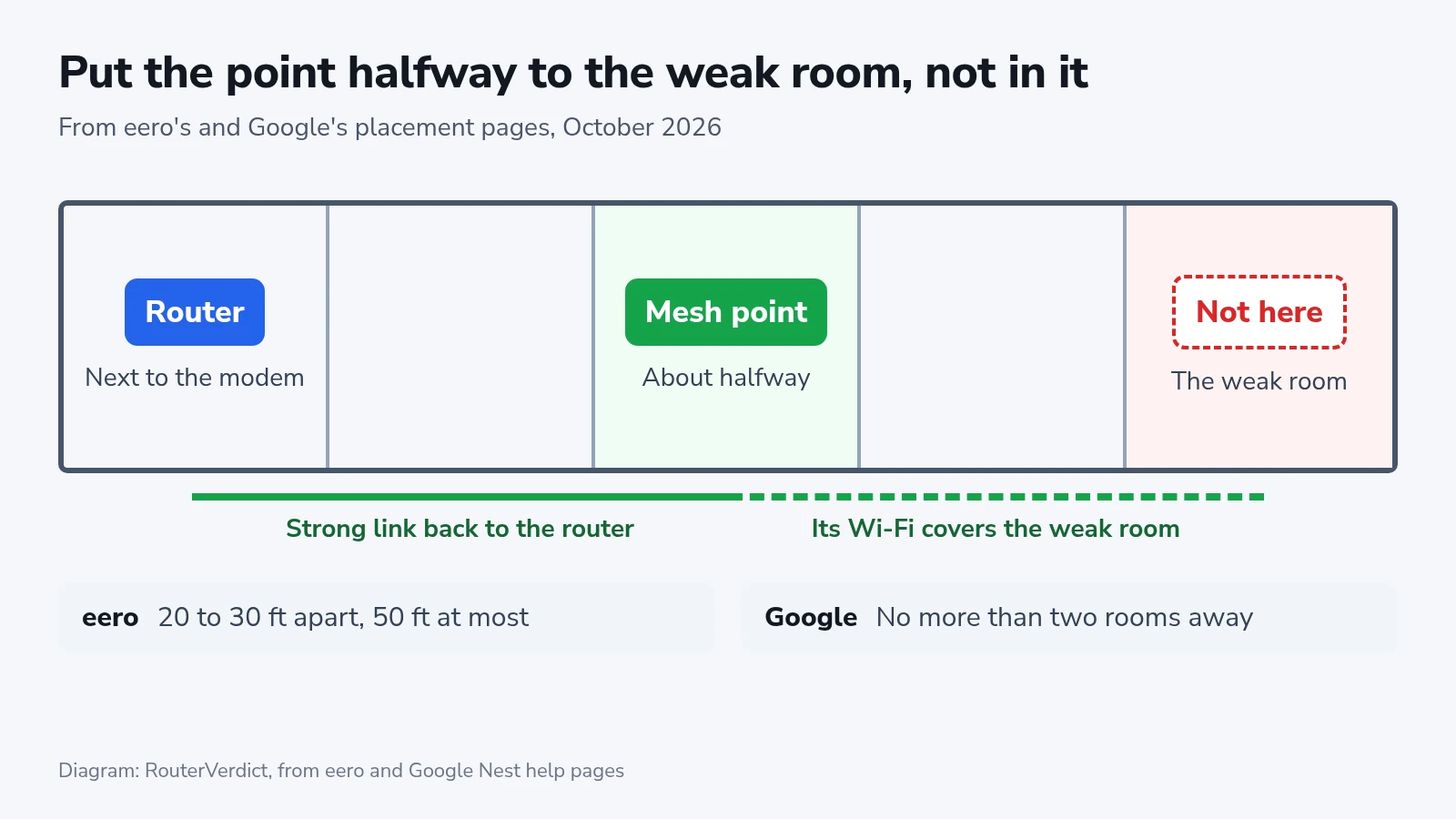
For mesh Wi-Fi placement, eero and Google give the same first rule: put each point about halfway between the router and the room where Wi-Fi drops. Then let the app’s own test decide whether it stays, because that test measures the link through the walls of your home. The steps below cover eero, TP-Link Deco, NETGEAR Orbi, ASUS ZenWiFi and other AiMesh routers, and Google Nest Wifi Pro, as their makers document them in October 2026. Each move costs a few minutes, mostly spent waiting for the point to restart. Both eero and Google rule out the obvious spot, the weak room itself, where the point hears the router as badly as your laptop did.
Before you start
- The maker’s app on your phone, signed in to the account that set up the network. ASUS and NETGEAR also show the link on the router’s web settings page.
- The router in its final spot. eero’s placement page says that moving the modem and router out of a basement into a central room speeds up the whole network.
- A free outlet near the halfway point, with a table, shelf or nightstand beside it.
- The rooms where Wi-Fi drops, so you know which way each point goes.
Where the first point goes
Start at the router and face the weak room. eero tells owners not to put a unit in a dead zone but halfway toward it, so it picks up a strong signal from the router and passes it on. Google’s placement page gives the same rule and adds a limit of two rooms from the router or from another point.
eero suggests 20 to 30 ft between units. Its upper limit is 50 ft. ASUS’s page for a weak AiMesh link suggests 3 to 5 m. That is about 10 to 16 ft, roughly half of eero’s spacing. Use either figure as a first guess, because the test that follows measures your own walls.
ASUS and eero both say their units send most of the signal along the plane they sit on, so they want them halfway between floor and ceiling. Deco is the exception. TP-Link wants the satellite at the main Deco’s height, ideally 1 to 1.5 ft off the floor.
Keep the point in the open, out of cabinets and media consoles. eero’s list of things to keep away from includes microwave ovens, refrigerators, metal furniture, mirrors, aquariums and cordless phones. Walls of brick, stone, plaster, lath or chicken wire stop more signal than wood does, which is why eero suggests placing units near doors.
Test, move, test again
The procedure is the same on every system, and only the readout changes.
- Set the point on a table or shelf about halfway toward the weak room, out in the open.
- Plug it in and add it in the app. A point that is already on the network only needs to restart and rejoin.
- Read the result in the app, or on the LED of an Orbi satellite.
- If the result is in the “Move it when” column, move the point one room back toward the router and test again.
- When it passes, leave it there. Place the next point the same way, halfway from the last passing point toward the next weak room.
| System | Where the result shows | Passing result | Move it when |
|---|---|---|---|
| eero | Placement test while adding, then bars on the eero’s page | “Placement looks great”, or 2 to 4 bars | “Placement could be better”, “out of range”, 0 or 1 bar |
| TP-Link Deco | “Network” tab, status card, then the satellite | 2 bars or more | Fewer than 2 bars |
| NETGEAR Orbi | The satellite’s LED after it starts up | Blue | Amber or magenta |
| ASUS AiMesh | “AiMesh” page, the line to the node | Green | Orange |
| Google Nest Wifi Pro | “Test mesh” in the Google Home app | “good connection” | “weak connection”, or a rating that keeps flipping |
A bar count from one app does not carry over to another. Two bars is the lowest grade eero calls acceptable, and it is the grade TP-Link recommends for a Deco. Orbi and ASUS grade the link with colors, and Google grades its speed. Read each system on its own scale.
Reading the result on each system
eero
The eero app runs a placement test every time you add a unit. Tap the “Home” tab, then the blue plus icon, then “Add indoor eero”. The app walks through “Place eero”, “Connect eero to network”, “Test placement” and “Set location”.
“Placement looks great” is the best of the three result screens, and it means the eero gets a strong signal. “Placement could be better” and “The eero is out of range” lead to the same next step, which is to move it closer to another eero.
To check an eero later, tap its nickname at the top of the Home page. Four bars is a strong mesh and three a good one. Two is acceptable, though eero warns that nearby devices may see slower speeds or buffering, so a third bar is worth one more move. One bar is poor, and zero means the eero has dropped offline. A wired eero shows a wired symbol instead of bars.
TP-Link Deco
During setup, the Deco app asks for your home’s layout (one floor, two floors, or three or more) and suggests where satellites go. To check a satellite afterward:
- Open the Deco app on the “Network” tab.
- Tap the status card at the top, which reads “Everything looks good” when the app sees no problem.
- Find the satellite in the list. The icon beside it shows its signal from the main Deco.
- Tap the satellite to see its “Signal” reading.
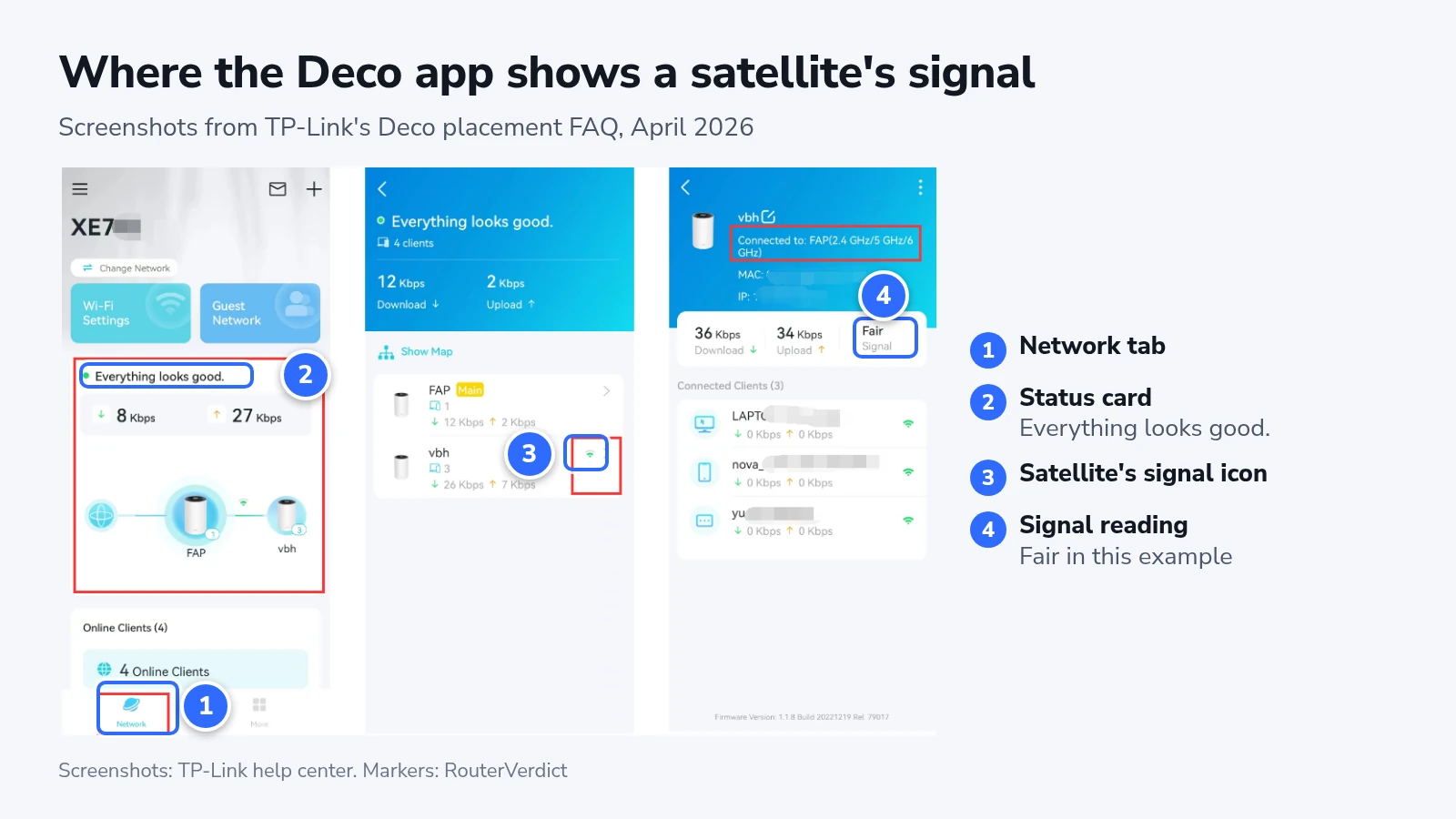
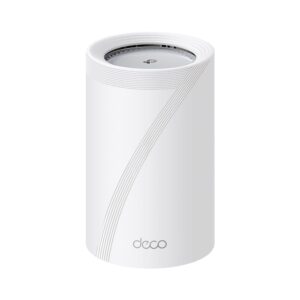
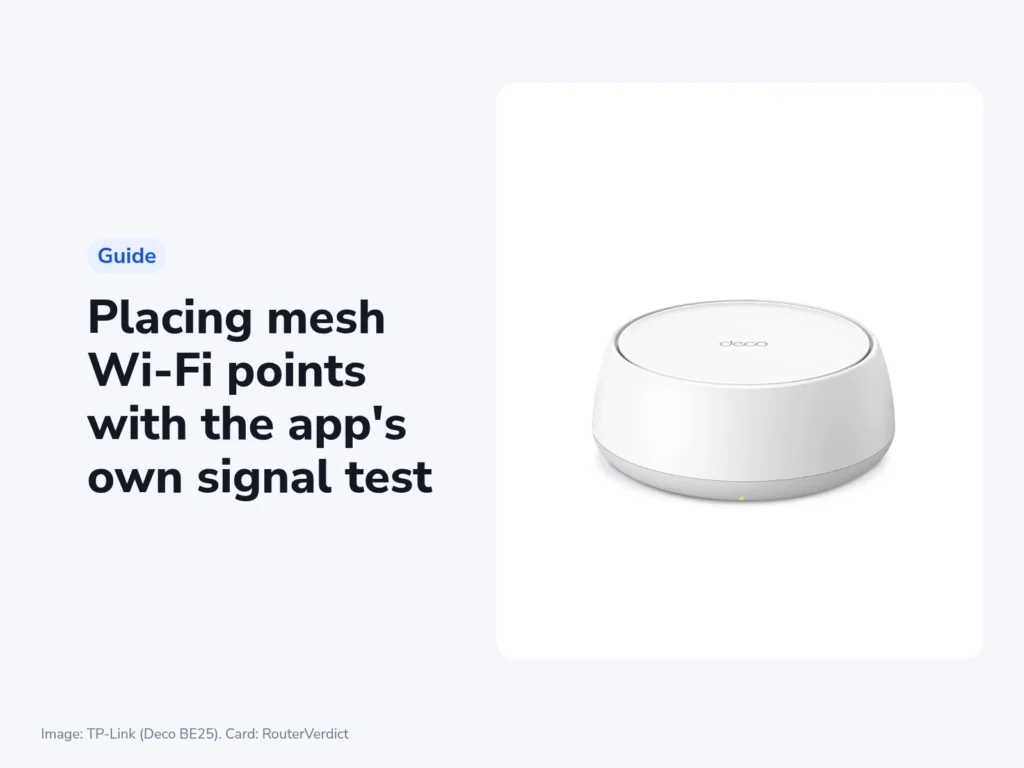
TP-Link’s placement page lists only its Wi-Fi 6 and 6E models. Wi-Fi 7 kits such as the Deco BE25 set up in the same Deco app, so start from the same “Network” tab even where a screen looks slightly different.
NETGEAR Orbi
An Orbi satellite reports the result on its own LED, so no app is needed. On the Orbi 970 the LED is a light bar on the front. After you plug the satellite in, the LED pulses white while it looks for the router, then settles on one color. Blue means it synced and the link is good. Amber means a fair link, and NETGEAR suggests moving the satellite closer. Magenta means it failed to sync.
On the Orbi 970, blue and amber stay lit for three minutes and then the LED turns off. To test again after a move, unplug the satellite, move it, plug it back in and wait about two minutes for blue or amber.
NETGEAR’s manual calls amber a fair link in its setup steps and a failed sync in its troubleshooting steps. Both end on the same advice: move the satellite closer.
For a check that does not depend on the LED, open orbilogin.com in a browser on the Orbi network and sign in as admin. “Attached Devices” lists each satellite under “Connected Satellites”, with a “Backhaul Status” for its link to the router.
NETGEAR’s manual notes that 6 GHz has a shorter range than 5 GHz. Satellites belong close to the rooms that need that band, and not in a basement, attic or closet.
ASUS ZenWiFi and other AiMesh routers
ASUS shows the result on the “AiMesh” page of the router’s web settings. The line from the router to each node is that node’s link, and the information icon on the page opens ASUS’s key:
- One green line: wireless, great signal quality
- One orange line: wireless, weak signal quality
- Two green lines: wired, great connection quality
- Two orange lines: wired, normal connection quality
- A broken line: disconnected
ASUS notes that features vary by model and firmware version, so a newer router’s page may draw the lines differently.
Google Nest Wifi Pro
Open the Google Home app and tap “Home” > “Wifi” > “Points” > “Test mesh”. The test measures the connection between the router and each point, and it only appears on a network with more than one Nest Wifi device.
The rating can flip between “weak connection” and “good connection” when the measured speed falls on the border between the two. Google’s advice for a result that keeps changing is to move the point closer to the nearest router or point.
Nest Wifi Pro units only mesh with each other, not with older Nest Wifi or Google Wifi points.
If the result stays weak
If a point fails even one room from the router, look at what stands between them. Try the same room first: higher up, in the open, with a clear view toward the router. Google’s page suggests that before moving to another room. eero adds that a home with very thick or dense walls may need more units.
When the point passes but the far room is still weak, add a point instead of pushing the first one farther out. Google suggests more points when moving them leaves gaps. eero’s Coverage scan can recommend “Add an eero” for the same reason.
Google’s page notes that points depend on each other, so fixing a “weak” point can mean moving a different one.
An Orbi satellite that stays magenta needs a sync in the same room as the router. Press “Sync” on the router, then press “Sync” on the satellite within two minutes. Once the LED turns blue, move the satellite to its spot and check that it lights blue there too.
If an ASUS node keeps its orange line after every move, ASUS suggests turning off Smart Connect and testing again, then trying with DFS channels turned off. On a Wi-Fi 7 router with MLO switched on, a node without MLO stops broadcasting 6 GHz Wi-Fi.
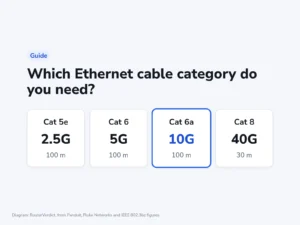
A wired link should be the strongest one in the system, since eero and TP-Link both call it faster and steadier than wireless. For a wired point that reads weak, ASUS starts with the cable and the switch. It asks for Cat 5e or Cat 6 cable and a gigabit switch, so check the cable category of the run before moving anything.
After the points pass
Once every point passes, check the rooms where you use Wi-Fi. On eero, tap “Settings” > “Troubleshooting” > “Device coverage scan”. It grades each connected device from 1 to 5 and either reports that everything looks good or suggests “Adjust eero placement” or “Add an eero”. On Google, run “Test mesh” again after any move, as Google’s placement page asks.
Google Home also posts a “Move [Wifi router or point] to improve signal” card when a point has averaged a poor signal, below -77 dBm, for 24 hours. When that card or a one-bar eero shows up, go back to step 3 of the test with that point.