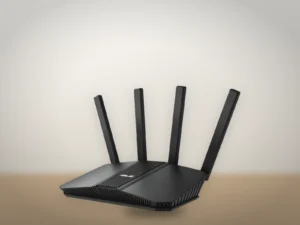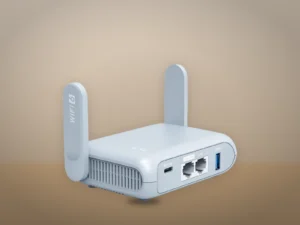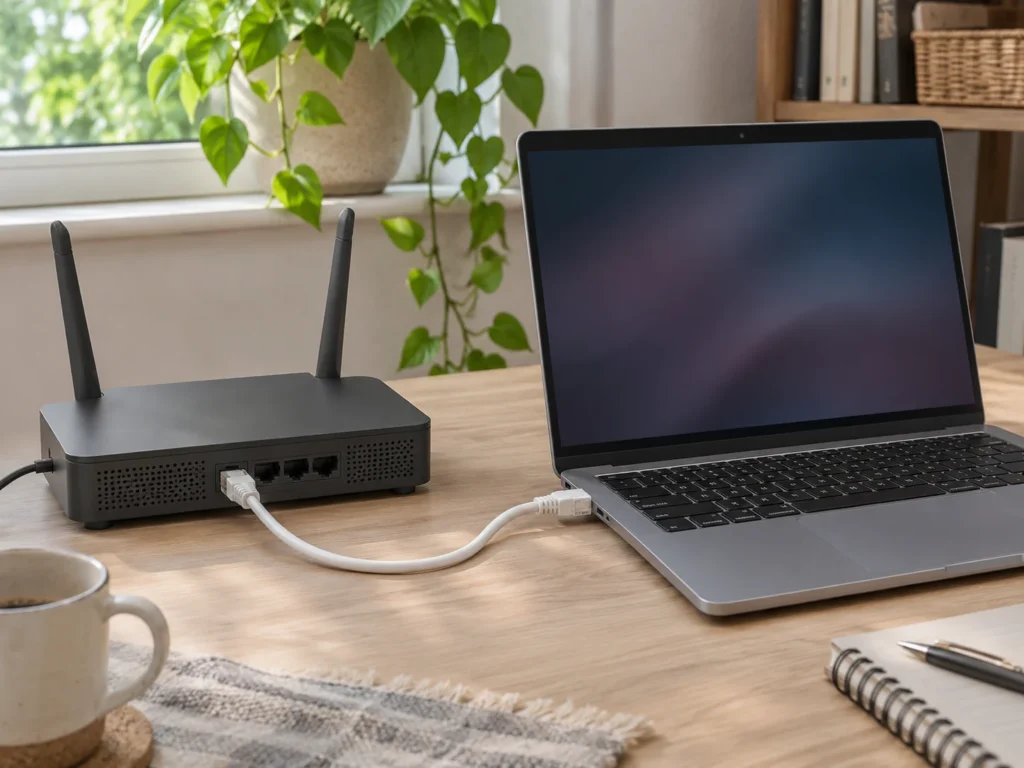
Check the laptop before you change the router. Windows 11 needs version 24H2 or later for Wi-Fi 7. A router also needs a laptop adapter and driver that can make that connection.
Read what Windows and the adapter support
Open Command Prompt and run netsh wlan show drivers. Read “Radio types supported”. If the list lacks 802.11be, check the adapter model and the driver before you change a router setting. A card that supports only 802.11ax can still use Wi-Fi 6 or Wi-Fi 6E, depending on the card.
Use Windows Update and check the laptop maker’s support site for the wireless driver. Intel notes that its Wi-Fi 7 adapters need current drivers and Windows 11 support to use the latest features. After you reconnect, open the connected network’s properties and check “Protocol” for the connection type.
Check the band you actually joined
A plain Wi-Fi 6 radio uses 2.4 and 5 GHz. Wi-Fi 6E can use 6 GHz with a compatible router. Wi-Fi 7 support depends on the adapter and router model, and a dual-band model can still make a Wi-Fi 7 link without a 6 GHz radio. Read the model’s band list before buying one just for that frequency.
If you use an Archer BE550 V1, TP-Link lists 2.4 GHz as 802.11ax in its band table. A compatible client can still use Wi-Fi 7 on another band of that router. Check the band in the connected network’s properties alongside the protocol.
Check the connection once more
After updating and reconnecting, compare the reported protocol to the adapter and the router’s band list. If the only slowdown is reaching a room served by a mesh node, check which node and band the laptop is using. The guide to adding a Wi-Fi 7 node explains what has to be compatible.