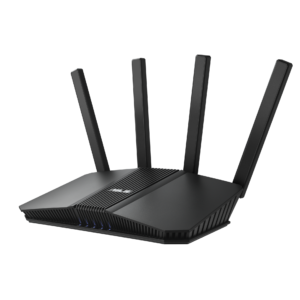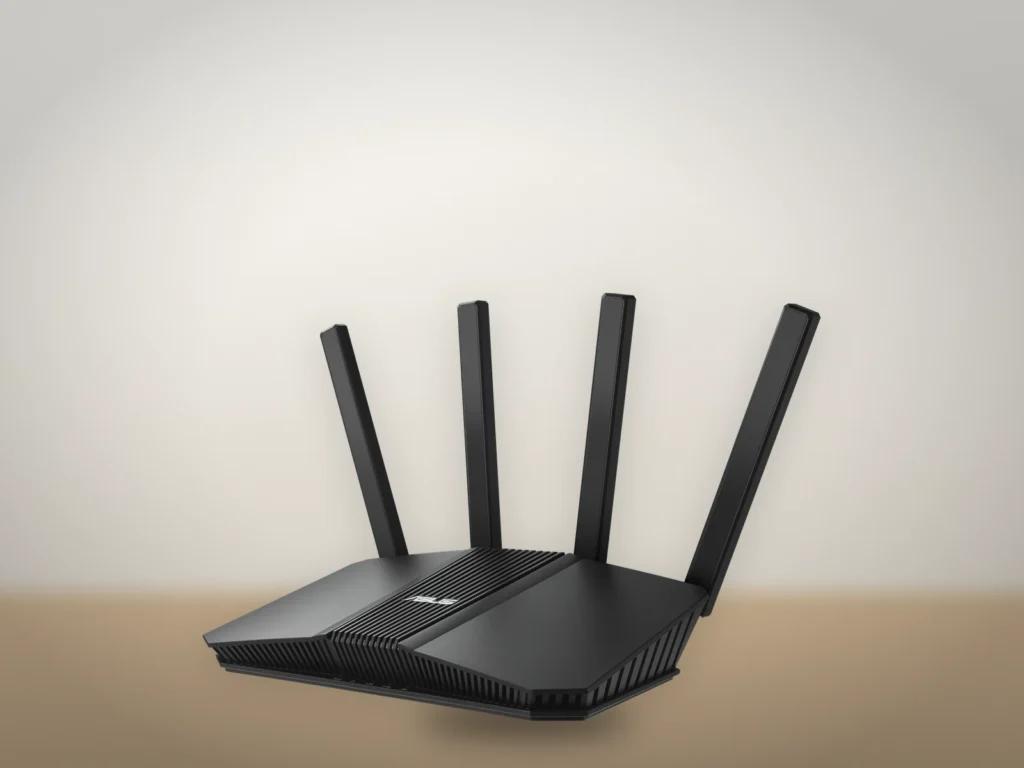
Try turning off automatic DFS channel selection and 160 MHz if your ASUS RT-BE82U keeps dropping 5 GHz devices. You can restore the wider setting if the change doesn’t help. ASUS pairs the two switches in its instructions for disabling DFS. Use the router’s web interface and make the change when a brief interruption is manageable.
Before you start
- Use a computer connected to the router. Connect by Ethernet if possible, so you can keep the settings open when 5 GHz restarts.
- Find the router’s LAN address and admin sign-in details.
- Check your firmware version. ASUS changed this settings page at build 3.0.0.6.102_35404.
What DFS and 160 MHz change
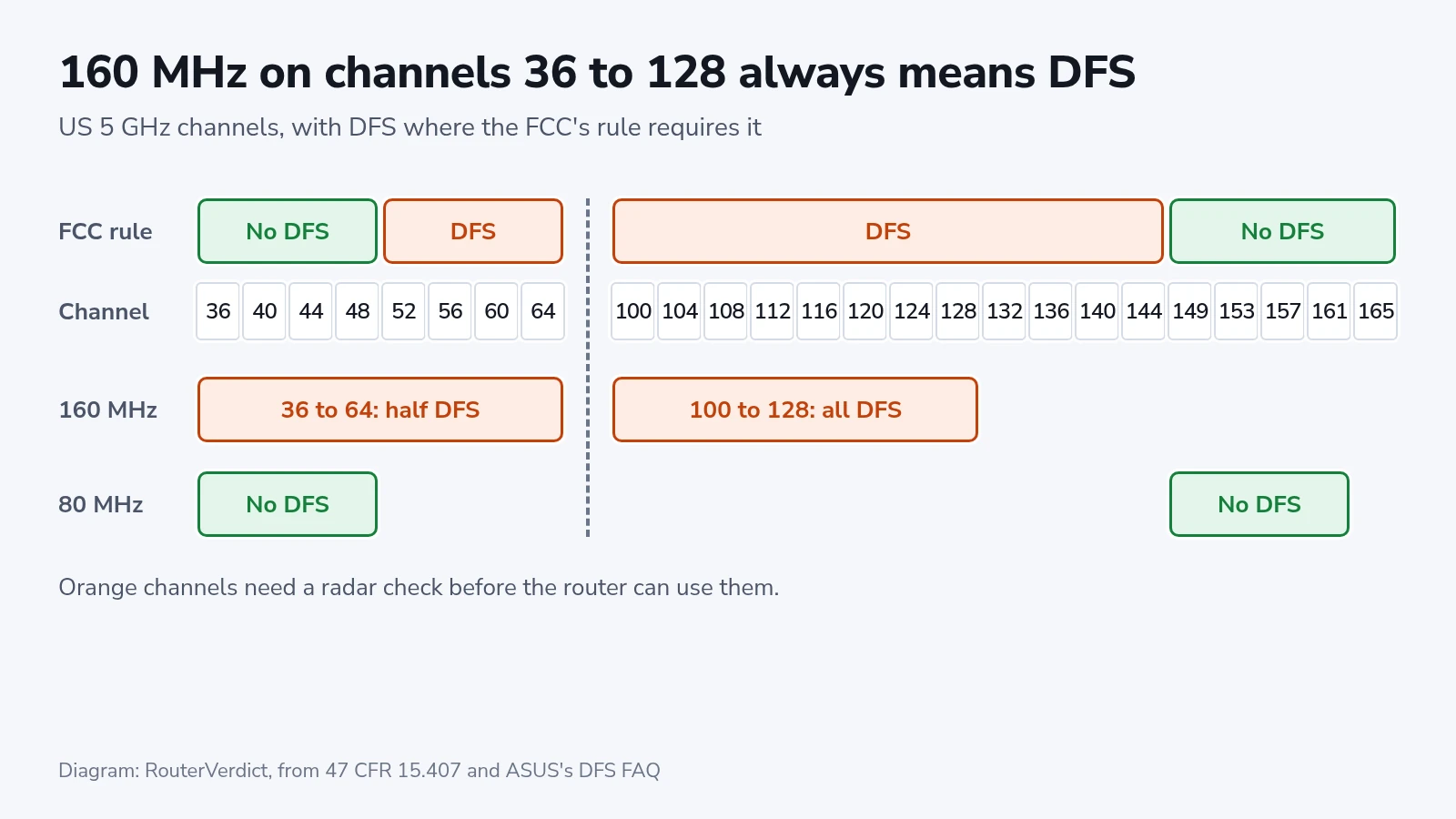
Dynamic Frequency Selection (DFS) lets Wi-Fi use parts of the 5 GHz band that it shares with radar. On the relevant US frequencies, FCC rules require a 60-second channel check before the router first uses the channel. If it finds radar later, it must leave the channel within 10 seconds and keep off it for at least 30 minutes. The change can disconnect 5 GHz clients temporarily.
A 160 MHz channel uses more of the band than an 80 MHz channel. On the channel plan illustrated here, the wide blocks shown include DFS frequencies. The channels your router offers depend on your model and region.
When to try turning it off
Keep the wider option if your connection is stable and you have a client that can use it. Try the narrower channel if devices disconnect or struggle to find your 5 GHz network. An interruption can have other causes, so compare what happens on the same devices before and after the change.
Open the 5 GHz settings
- Enter the router’s LAN address in your browser and sign in to the router.
- Choose “Wireless” under “Advanced Settings,” then open “General.”
- Find the 5 GHz section. ASUS’s illustration shows a router with two 5 GHz radios. The RT-BE82U has one.
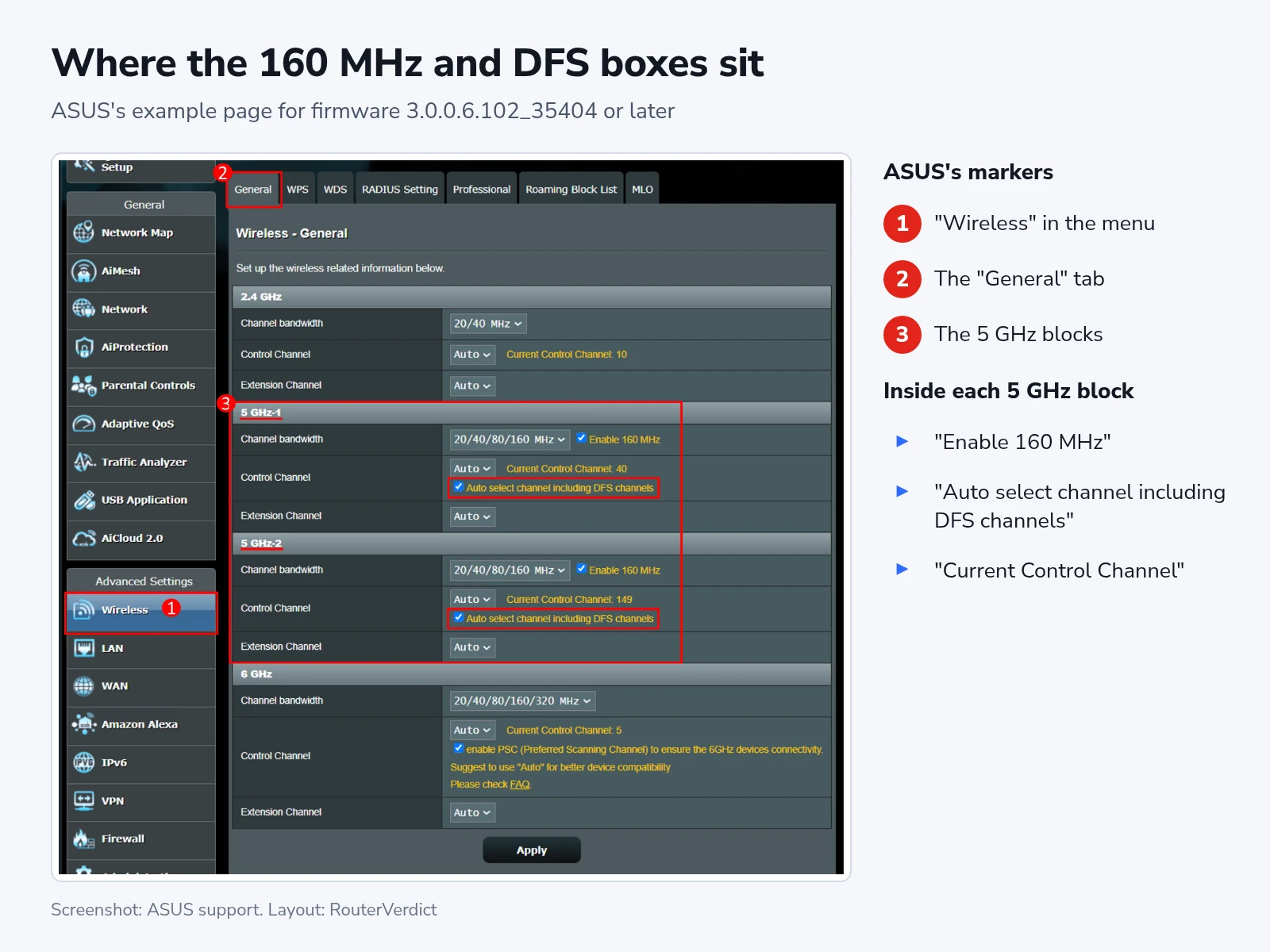
Switch off automatic DFS and 160 MHz
- Beside “Control Channel,” use “Auto” so you can change the automatic channel selection.
- Clear “Auto select channel including DFS channels.”
- Clear “Enable 160 MHz” in the channel bandwidth settings.
- Click “Apply” and let your 5 GHz devices reconnect.
Before build 3.0.0.6.102_35404, ASUS says to switch off “Smart Connect” and select 5 GHz before clearing both options and applying the changes. On a two-radio router, check which 5 GHz network the affected devices use and adjust that radio. The RT-BE82U configuration has no separate 6 GHz page.
Check the outcome
Look for “Current Control Channel” under the 5 GHz settings after the change. Compare the displayed channel with the router’s allowed channels and check that your devices reconnect. To reverse the test, restore your original settings and click “Apply.” If the router selects a DFS channel, ASUS says the radar check can delay 5 GHz. You can use 2.4 GHz while it checks.
If a client still shows 80 MHz with 160 MHz enabled, check the client’s capabilities. ASUS says radar detection can also force a fallback to 80 MHz. If the narrower setting leaves the same problems, check distance and obstructions before changing more settings.