Turn on automatic firmware updates if your router supports them, then check the installed version after its next update window. An enabled switch doesn’t prove a fix arrived. NETGEAR’s November advisory says supported devices with automatic updates may already have its patches, and asks owners to verify the firmware.
What the November advisory fixes
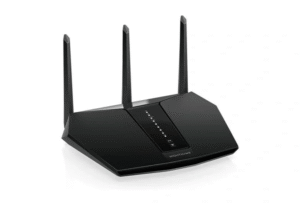
NETGEAR lists version 1.0.15.110 as the RAX30 fix for a missing-authentication flaw. Someone authenticated to its Wi-Fi could obtain sensitive information and alter configuration, including administrator credentials, without authenticating to the router itself. NETGEAR rates it Medium.
For the Orbi RBR350 and RBS350, the advisory lists version 4.4.3.4. That issue requires an authenticated administrator on the local network and can allow unauthorized commands. Install firmware only for the model and revision named in its instructions.
Use the current firmware offered for your exact model and hardware revision. The advisory establishes the patch baseline. Check the model’s download page for later releases. The earlier October advisory is a separate set of affected products.
Where to set an update window
Check your model’s manual before following a menu path. ASUS and TP-Link document these controls for supported models, while eero schedules its automatic updates through the app.
- ASUS WebGUI: open Administration > Firmware Upgrade, enable Auto Firmware Upgrade and select a time. ASUS says a new available version then installs at that time.
- TP-Link Archer AX73 V1: sign in at tplinkwifi.net, enable Auto Update, specify Update Time and save. Other models and revisions can differ.
- eero app: open Settings > Software updates > Preferred update time. Select the window and check whether you chose AM or PM.
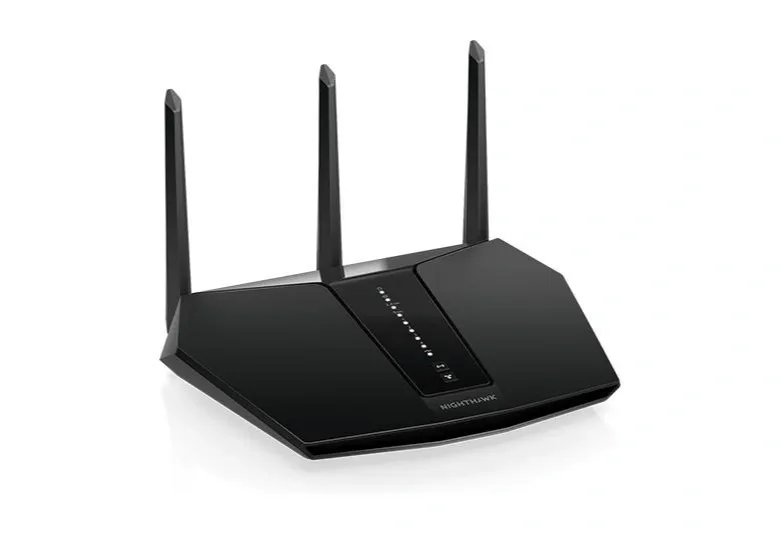
For NETGEAR, the advisory recommends enabling automatic updates on supported devices but doesn’t supply a universal menu path. Follow the instructions for the exact Nighthawk or Orbi model instead of assuming every interface has the same switch.
Allow for a reboot
Choose a window when a brief interruption won’t disrupt work or a call. eero estimates 15 to 20 minutes for the whole update and about 90 seconds offline during the reboot. Allow the interruption stated in your model’s update instructions.
Keep the devices powered and online. ASUS warns against switching off during an update, and eero says unplugged or offline nodes won’t update. TP-Link asks owners to back up their configuration before upgrading. Check the model’s instructions for the backup route.
When the automatic route fails
ASUS directs owners to a manual update if the router cannot reach its update server or hasn’t been updated for a while. Use its official model-specific download and instructions. Its guidance also recommends a factory reset after updating, so plan for that setup work before starting the manual route.
After the update window, read the installed version in the router’s app or status page. Compare it with the current official download for that exact model. Check each node on a mesh system. One updated router doesn’t establish that its satellites also updated.
Our take
Automatic updates are worth enabling because they reduce the need to find every new release yourself. Keep the version check as a separate step. It catches a router that missed its window or a mesh point that was offline.