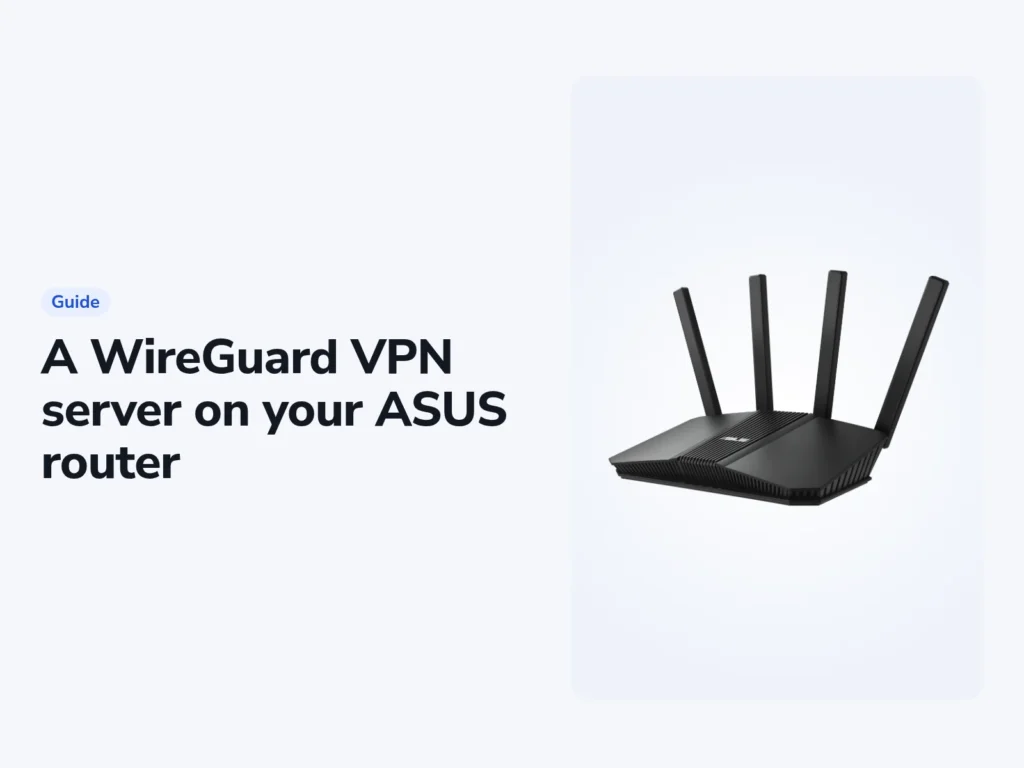
Start with the WAN IP on your router’s “Network Map.” A public IPv4 address there gives your phone an address for the WireGuard server. If the ASUS sits behind a separate gateway, check where the public address is assigned before you create a VPN profile. The steps follow ASUS’s setup guide for supported models such as the RT-BE82U.
Read the WAN address
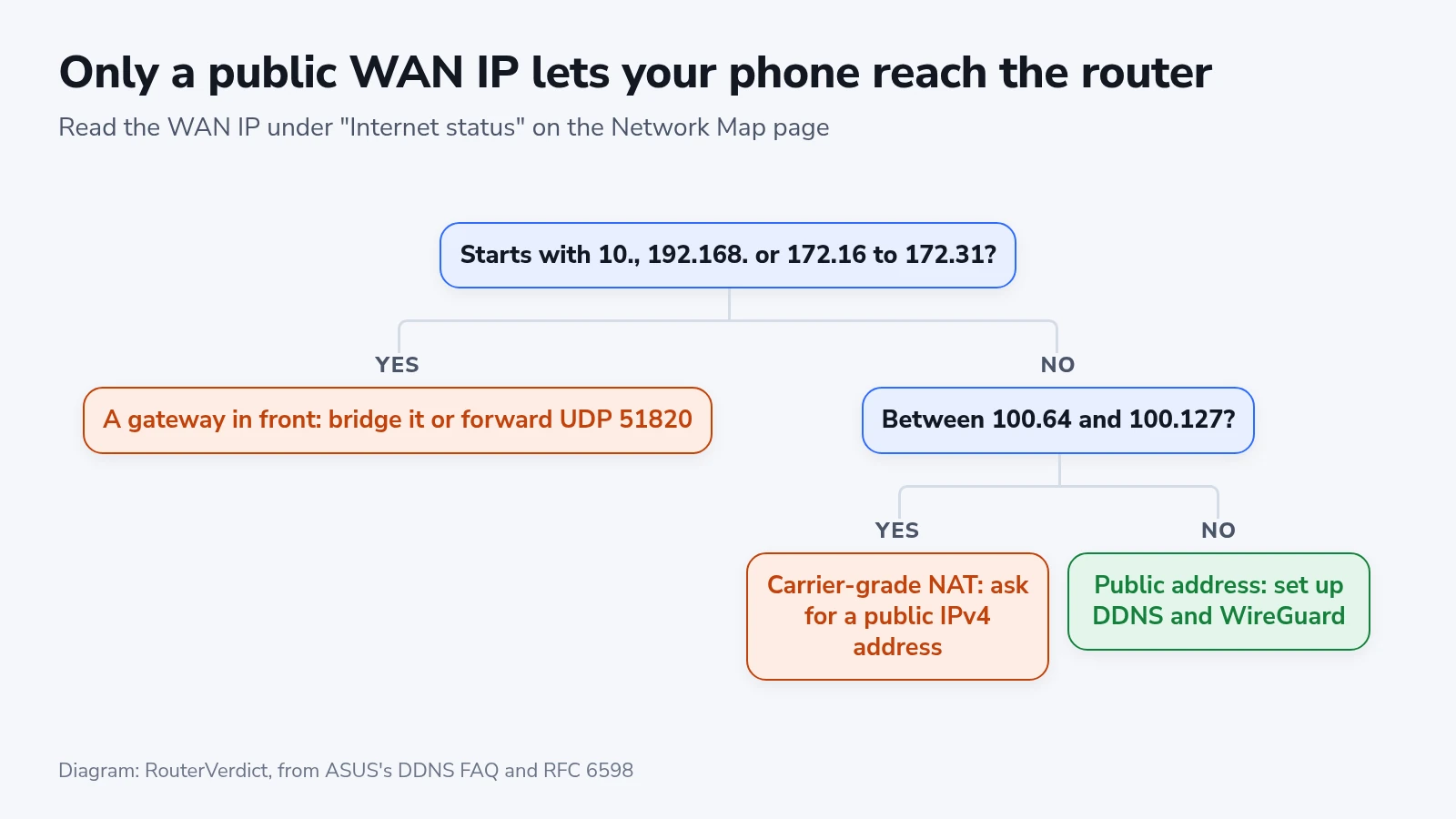
Connect to your home network and sign in to the ASUS router using its LAN address. Use “Network Map” to find the WAN IP under “Internet status.” The first digits tell you which connection you have.
- A WAN address starting with
10.,192.168.or172.16.through172.31.is private. Check the internet address of the gateway in front of the ASUS. If the gateway has a public address and you manage it, bridge mode can remove the double NAT. You can also forward the WireGuard server’s UDP listen port from your gateway to the ASUS WAN address. - An address starting with
100.64.through100.127.is in the range reserved for carrier-grade NAT. Ask your provider for a reachable public IPv4 address. - With a public IPv4 address on the ASUS, continue to setup. Check with your provider if you don’t recognize the WAN address or your gateway reports a different address.
Give a changing address a name
If your provider changes your public IP from time to time, register a DDNS hostname. The hostname gives the phone a stable address to look up when it connects.
- Open “WAN” > “DDNS” in the router’s web interface.
- Enable the DDNS client and choose the ASUS server.
- Enter a hostname and select “Apply.”
- Return to “Network Map” and look for the DDNS hostname under “Internet status.”
With an upstream gateway, check that the hostname points to the reachable public address on that gateway before you rely on it. The hostname identifies the gateway. WireGuard still needs its UDP port forwarded to the ASUS if both are routing.
Enable WireGuard and add a phone
Install the current firmware for your model. On its ASUS specifications page, look for WireGuard under VPN Server. ASUS lists VPN client support separately.
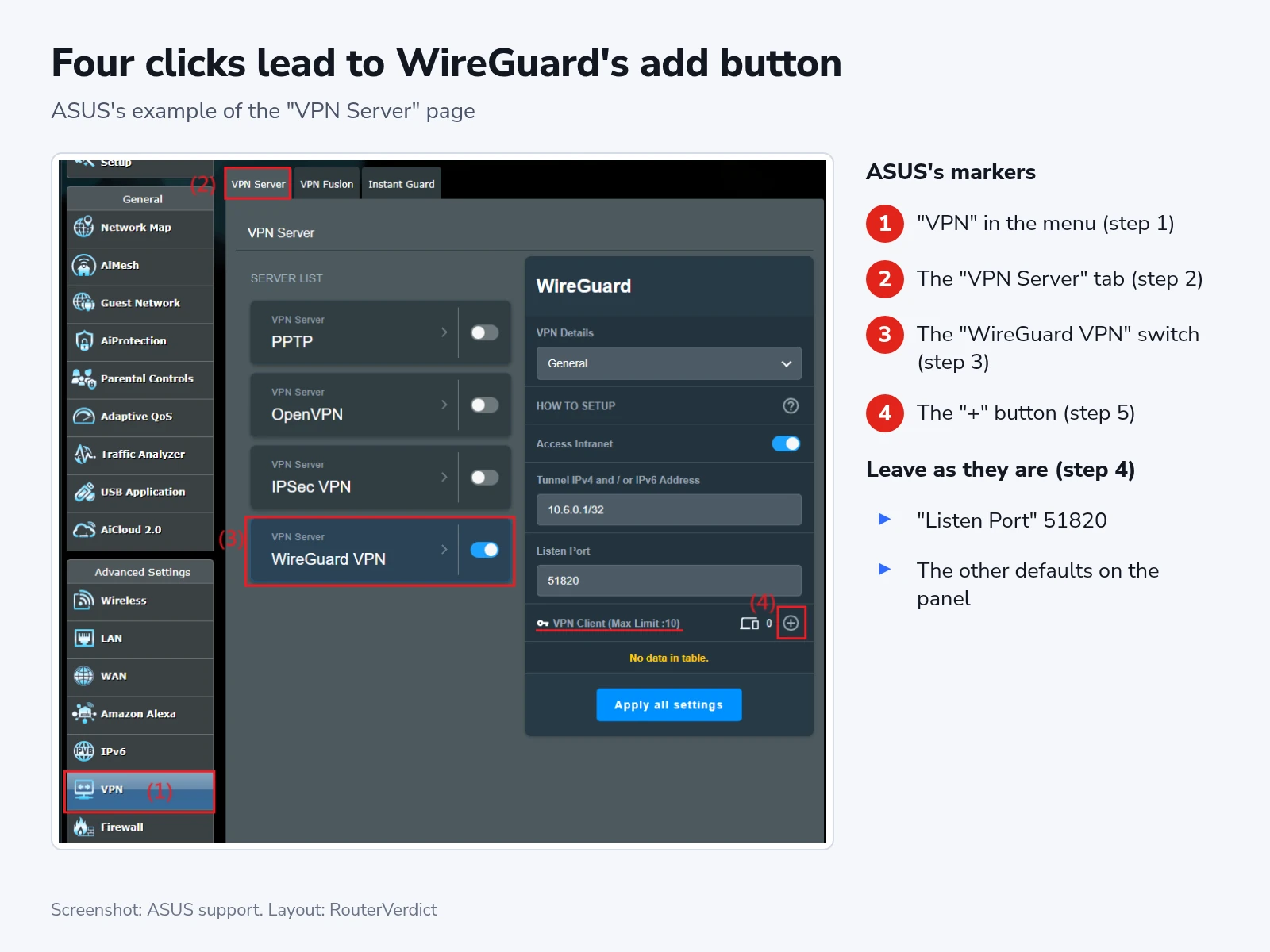
- Open “VPN” and select the “VPN Server” tab.
- Turn on “WireGuard VPN.”
- Read the “Listen Port.” ASUS’s example uses UDP 51820. Use the port shown on your own router if you need a gateway forward.
- Click the plus button to add a client.
- Give it a name that identifies the device, then click “Apply and Enable.”
Look for the name in the client list. Make a separate profile for each device so you can remove access for one device at a time.
Import the profile and check its endpoint
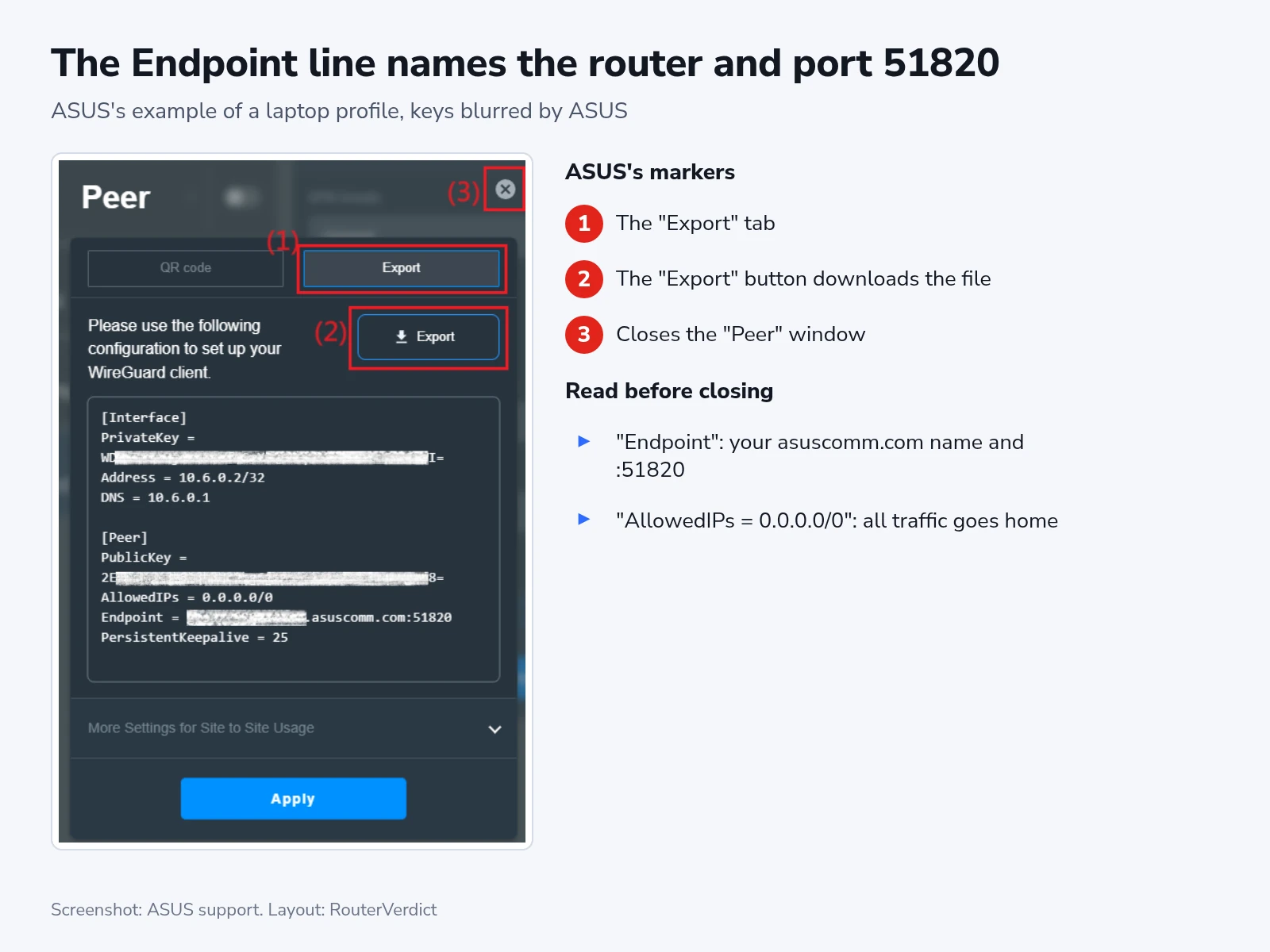
Install WireGuard on the device you want to use away from home. On a phone, open the new client’s “QR code” tab on the router. Use the app’s add button to scan the code. On a laptop, use “Export” on the router to save the profile file, then import it into the WireGuard app. Keep the QR code and file private because they contain the credentials for that profile.
Check “Endpoint” in the profile. It should show the public address or the DDNS hostname, followed by the server’s port. In ASUS’s example the hostname ends in asuscomm.com and the port is 51820. If you set up DDNS, use the registered name and keep the same port.
A profile that lists 0.0.0.0/0 under “AllowedIPs” routes IPv4 traffic through home. If you leave it active to browse, the upload capacity of your home connection can limit download speeds on the phone.
Test the tunnel from outside the home
- Turn off Wi-Fi on your phone so it switches to mobile data.
- Turn on the new tunnel in WireGuard.
- Open a device you normally reach only on your home network. Try the router’s LAN address or a file share you already use at home.
If the device responds over mobile data, you have remote access.
Where to look if the test fails
If the router has no WireGuard switch under “VPN Server,” check the model’s specifications and firmware again. With a client profile in place, compare its endpoint and UDP port with the address that receives your internet traffic. At a separate gateway, verify that its port rule still points to the current ASUS WAN address.
If a home device loads by address but its name fails, check the tunnel’s DNS settings. ASUS’s iOS instructions put that field under “Edit” in the tunnel’s settings. Match the DNS settings to the resources you need to reach.
Remove the client’s entry from “VPN Server” when a phone or laptop leaves your household. Keep the router’s firmware updates current and run the mobile-data test again after an internet provider or gateway change.